Author: Russell

Chromebooks, Linux, and Lenovo

Have you ever made a technology purchase without fully researching the device to make sure you can use it the way you want to?  I have, and many times I’ve come to regret it.  My recent purchase of a Lenovo Thinkpad 11e Chromebook is trying to turn into one of those times.


I have a collection of sad old obsolete laptops that are essentially tethered permanently to an electrical outlet to function.  They’re also mostly large and bulky, so not ideal for on-the-go use.  I also have an old Asus eee Netbook that was the main computer I used when out and about, but it was slow and not able to do too much at once without being bogged down.


About a month ago, I decided it was finally time to put some of my junkers out to pasture, and to replace them with a relatively small laptop with modern power and capabilities.  I primarily use Linux, and had no interest in purchasing any devices with Windows 8, but was intrigued by the many nice Chromebooks coming onto the market.


I had been skeptical of Chromebooks initially.  What’s the value in a device you can mostly only use when online?  Well, almost anywhere I go, an internet connection is available, so that’s really less and less a concern for me.  I also saw many articles on the subject of running Linux from a Chromebook.  It seemed like the perfect solution.  Relatively affordable hardware, in sizes I was looking for, and the possibility of using Linux as desired.


Most of the articles and posts I saw were about Acer Chromebooks.  I had basically narrowed down my search to a couple Acer models and a couple Asus models.  But then I found that my company had deals for purchasing laptops through Dell and Lenovo.  I looked at the Dell and Lenovo offerings, and found the Lenovo device very appealing.  I had a Lenovo laptop that I really liked using, which eventually found its way into my wife’s hands.  I had recommended the same model to my mom when she needed a new laptop, and she has had good luck with it as well.  Additionally, I had used Lenovo laptops at work previously and they were always solid.


The decision was made.  I ordered a Lenovo Thinkpad 11e Chromebook.  If only I had bothered to do some more research ahead of time, I might have realized that apparently no one else has attempted to run Linux on this model, or if they have, they haven’t bothered to write about it anywhere I’ve found online.


Troubleshooting Efforts

I wrote up my entire process and posted it to LinuxQuestions.org.  I got some helpful replies from other forum users, but I’m still looking for a solution.  Here’s the rundown of my processes, maybe someone reading this post will have some insights.


I made a backup of ChromeOS, switched the device to developer mode, and I’ve tried a couple things to get “legacy boot” to work, but no joy so far. Upon booting, I’ve tried hitting CTRL+L to get legacy boot and then hitting ESC to see a list of options as several articles suggested, but that didn’t work.


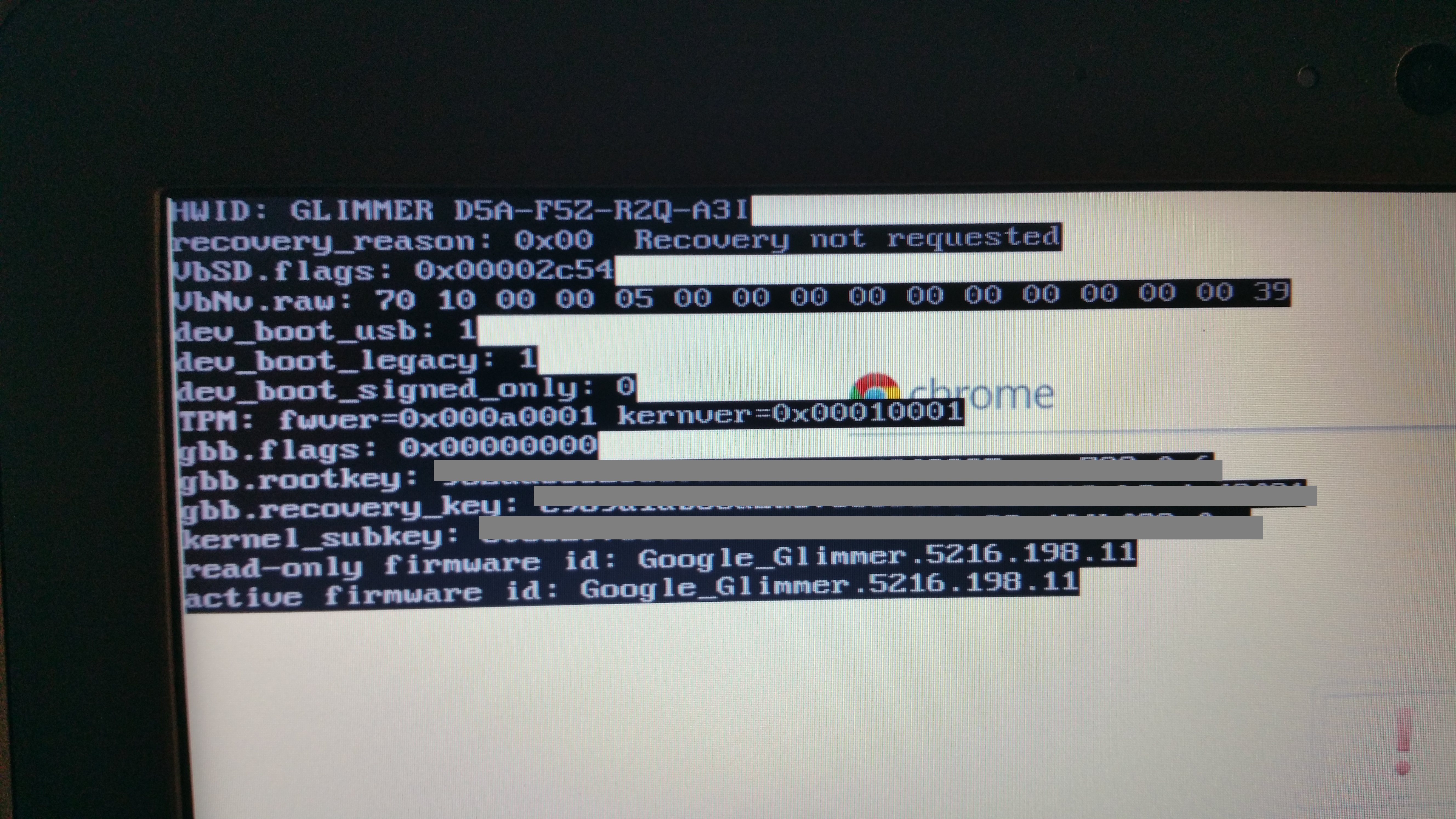
I did find an article that showed me how to set the dev_boot_usb=1 and dev_boot_legacy=1 as shown in the screenshot below. I set these parameters by hitting CTRL+ALT+=> (with => being the forward arrow, or what would be the F2 key on a normal keyboard) and running the following commands after logging in as the user “chronos”


sudo crossystem dev_boot_usb=1


sudo crossystem dev_boot_legacy=1
CTRL+I

CTRL+I

Later, I found another piece of the puzzle.  Upon booting, before logging in, I hit the CTRL + ALT + => and actually read all the stuff that shows up in the terminal.


I logged in as chronos, became root, then input the following command:


enable_dev_usb_boot


Supposedly this command would let me boot from USB, or so said all the terminal info at the login prompt. From here, the instructions said to hit CTRL + U at the developer mode screen, and I should be able to boot from USB. I did so, and the device appeared to restart rather than giving me the option to boot from USB.  I say “appeared” because the screen goes black and I hear system beeps, but I never see a list of boot options.


Interactions with Lenovo

Out of desperation, I decided to give Lenovo support a call.  None of the manuals or documentation I was able to find on my device through their website cover any of these topics.  The first time I called, after explaining the situation, which is admittedly a lot to get through in a brief introduction on the phone, the support representative flatly told me that they didn’t support whatever I was trying to do, and she was being a bit curt with me, possibly due to some miscommunication, so I didn’t press the matter.  Didn’t have a lot of time to get into an argument just then.


I tried last night to call support a second time.  Everyone I spoke with was friendly and professional, however, the process on their end could use some improvement.  The first person I spoke with said I had an Ideapad based on the serial number I read off to her.  The device is definitely a Thinkpad, it says so right on the front of it, but I let her transfer me to the Ideapad people.  When I got on with the Ideapad guy, I had to give him all the same information I gave the first lady.  Name, address, phone number, issue, etc etc.  After giving him the serial number, he realized the device was in fact a Thinkpad, as I knew all along, and transferred me back to the Thinkpad people.


The next lady I spoke with also needed the same information from me.  Name, address, phone number, issue, etc etc.  She then spoke with a technical resource and they came to the conclusion I needed to talk to someone in software support, and not hardware support, so I was transferred again.


The software support lady needed all the same information.  Name, address, phone number, issue, etc etc.  After I relayed all the information to her, she spoke with a technical advisor, and then assured me that they could resolve my issue, but my warranty only covered hardware issues, and I’d need to purchase some support for software issues like the one I was having.  Well, there were a couple different options presented, but they all cost more than I wanted to spend to figure this out, in some cases, almost 2/3 of the price of just buying another Chromebook.  In one case, I had to commit to purchasing 10 months of support at a minimum.  I thanked her for her time and said I’d continue pursuing resolution on my own.


What I left wondering was what happened to all that information I supplied with each new person I spoke with.  Presumably each of the 4 people I spoke with was entering all my information into a system somewhere.  How come none of that data transferred from one person to the next?  I realize I wasn’t paying for Cadillac service or anything, just the standard hardware warranty coming with my device, but it seems like that information should’ve been able to be shared between operators I spoke with.  Instead, it seemed like they were just hitting the transfer button.  I’m not trying to be super critical of Lenovo, just an observation on how the support process might be improved.


A Request for Assistance

If you or someone you know has experience running Linux on a Lenovo Thinkpad 11e Chromebook, I’d sure appreciate some assistance figuring out what I’m missing or what I’m doing wrong.  I just want to boot the device from a Fedora live USB, then install Linux onto an SD Card.  I have no reason to believe this isn’t possible, but so far, I don’t have a track record of success.  Please see my post on LinuxQuestions.org for further context.


My next step is going to be taking the device to the next meeting of the Kansas City Linux Users Group in the hopes that someone there will have some experience, or that putting together the minds of many Linux users will be the X-factor I need to get this thing working the way I want.  I would’ve gone last week, but had to make an unexpected trip to San Francisco to attend Dreamforce 2015.  So it will be another couple weeks before I can seek help from the KC LUG in person.


I’ll post updates if I find a solution.  If you have any advice or experience running Linux on a Chromebook, particularly on a Lenovo Thinkpad 11e Chromebook, please comment below.
From the Top of the Compton Hill Water Tower

(If you just want to see the pictures, skip down to the bottom)

When I was in 7th grade in St. Charles, in the gifted program in my school district we did a unit on architecture, which sparked my ongoing interest in the topic.  The unit culminated in building a house model, a task I very much enjoyed, even installing lighting in the form of Christmas lights, creating a stucco like finish, and using AstroTurf for the lawn, which put my house model well past the card stock construction that was the assigned building material.  The only part I didn’t love was the roof, which ended up being a hipped roof because the teachers restricted the amount of supplies I could use.

But the part of the project that had a more lasting impact on me was looking at slides (as in film slides from the 70s) of architecture around the St. Louis area.  Of all the fascinating architecture we saw, the examples I was most fascinated by were the two water intakes in the Mississippi River and the three standpipe water towers.  Visiting the water intakes would be impossible, but when I got home from class, I told my parents about them and how cool they were on the slides, and cajoled my dad into driving me into St. Louis from St. Charles.

All three towers are located on or close to Grand Blvd, two in the College Hills neighborhood up North, and the third in Compton Heights just south of Midtown.  The towers looked a bit more weathered in person in the late 90s when I first saw them compared to in the slides from the 70s we viewed in class.

We started up North in College Hills.  The Grand Avenue Water Tower, the oldest of the three, is designed to look like a massive Corinthian column.  The white paint was starting to chip off and show through the red bricks it was constructed with.  The Bissell Street Tower just a couple blocks away,  was also made of red brick construction but had not been painted over.  Then we drove down Grand to see the Compton Hill Tower, which has a nice park built around it now (probably did back then too, but I can’t remember.

Of the three, only the Compton Hill Tower actually still serves as a water tower, though a reservoir in the park actually supplies the water to the surrounding area.

My curiosity was satisfied, and we returned home to St. Charles.  I continued with the project as I described at the beginning of this post.  The water towers slowly receded into the back of my memory until I rediscovered them again during college on what was to become one of my favorite websites:  Built St. Louis.

In 2013, Shannon got us Rams tickets as a Christmas present, and we went on a little driving tour of the city since she had never been before.  In addition to going up in the Arch, watching the Rams unexpectedly stomp the Saints, and enjoying the Imo’s pizza and toasted ravioli, we checked out the towers that I had last seen more than 10 years prior.  I later looked online and found that a Water Tower and Park Preservation Society dedicated to restoring, preserving, and promoting the Compton Hill water tower, and tours were permitted a couple times per year.  I was determined to go up in the Tower.

I got my chance in October 2014.  I went to stay with my Grandma in St. Ann for the weekend, and she and I met up with my sister to check out the Jewel Box and Korean War Memorial in Forest Park, then headed down to Compton Heights.  We got there a little before the tower was open to the public, so we milled around the park for a bit, taking in the Naked Truth statue and the reservoir area, which had some interesting fountains.  There was a pretty decent view of Downtown from right near the reservoir, and we could also see Clayton off in the distance.

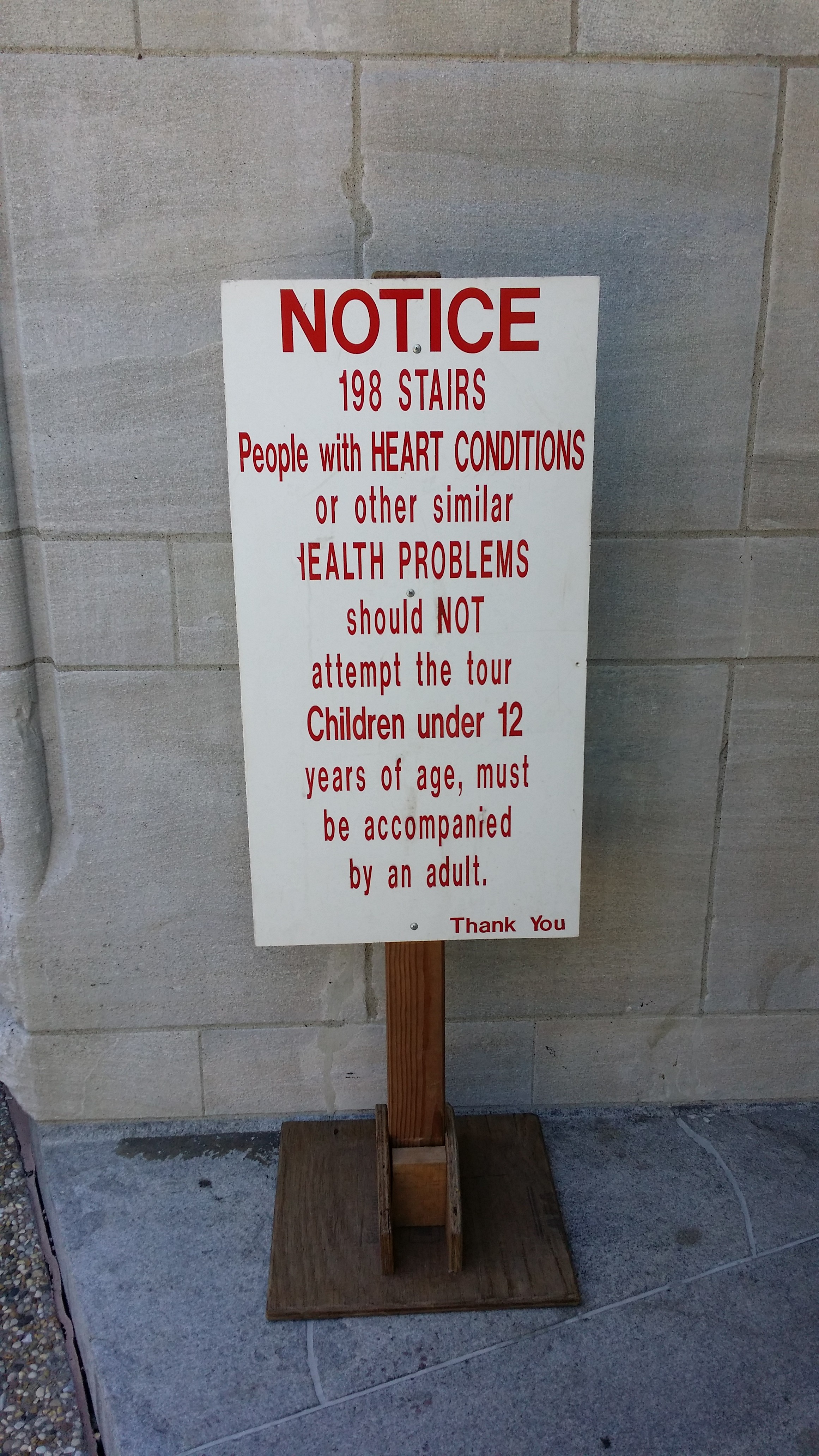
Finally the tower opened, and we climbed the 198 spiral stairs to the top.  The view from the top was amazing, and I was able to see many buildings and landmarks I’d been studying on Built St. Louis and elsewhere from up top.  It was definitely worth the climb, and I highly recommend any St. Louis lovers, architecture lovers, history lovers, or cardio lovers to check it out for themselves.  Pictures below.

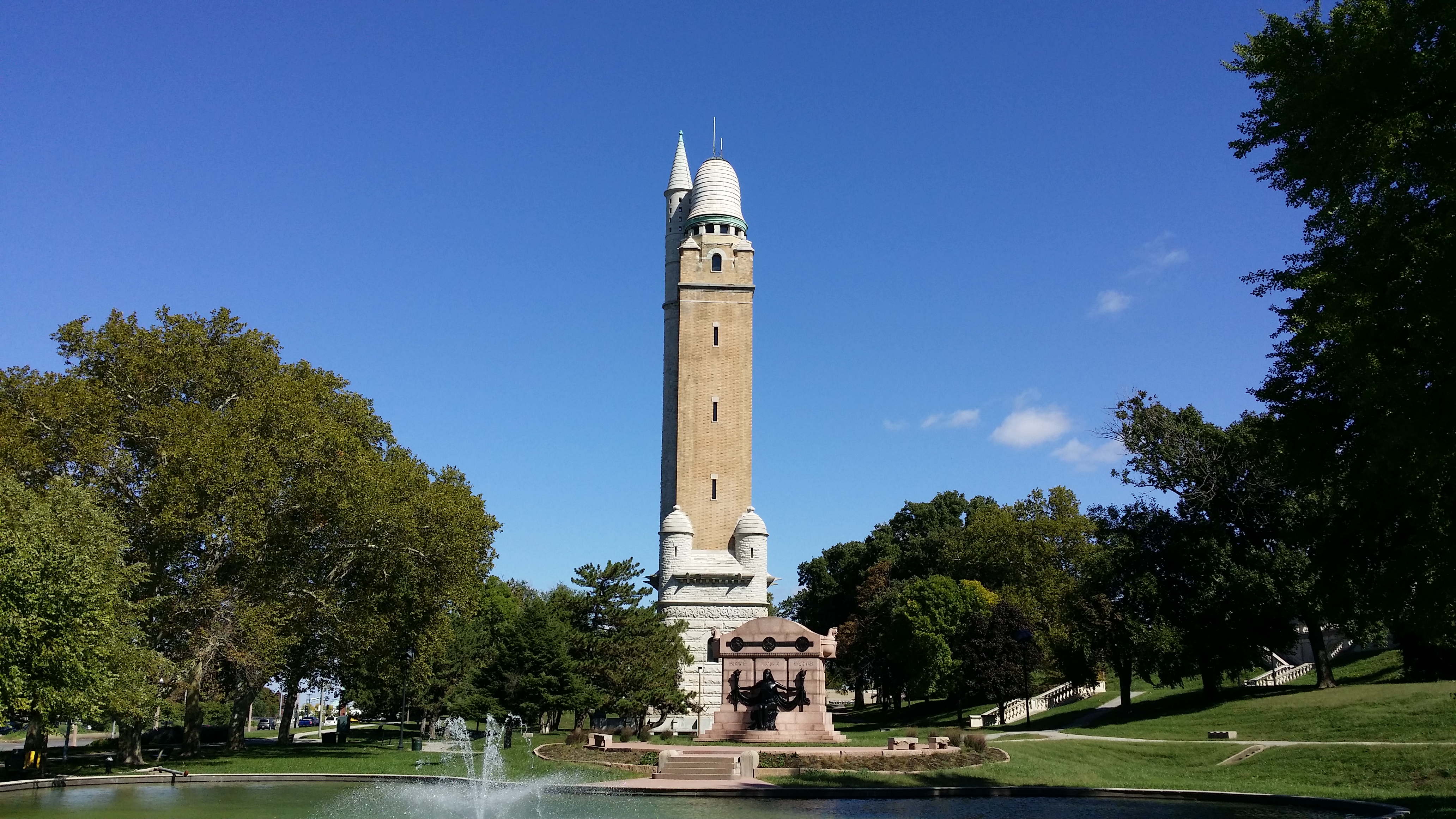
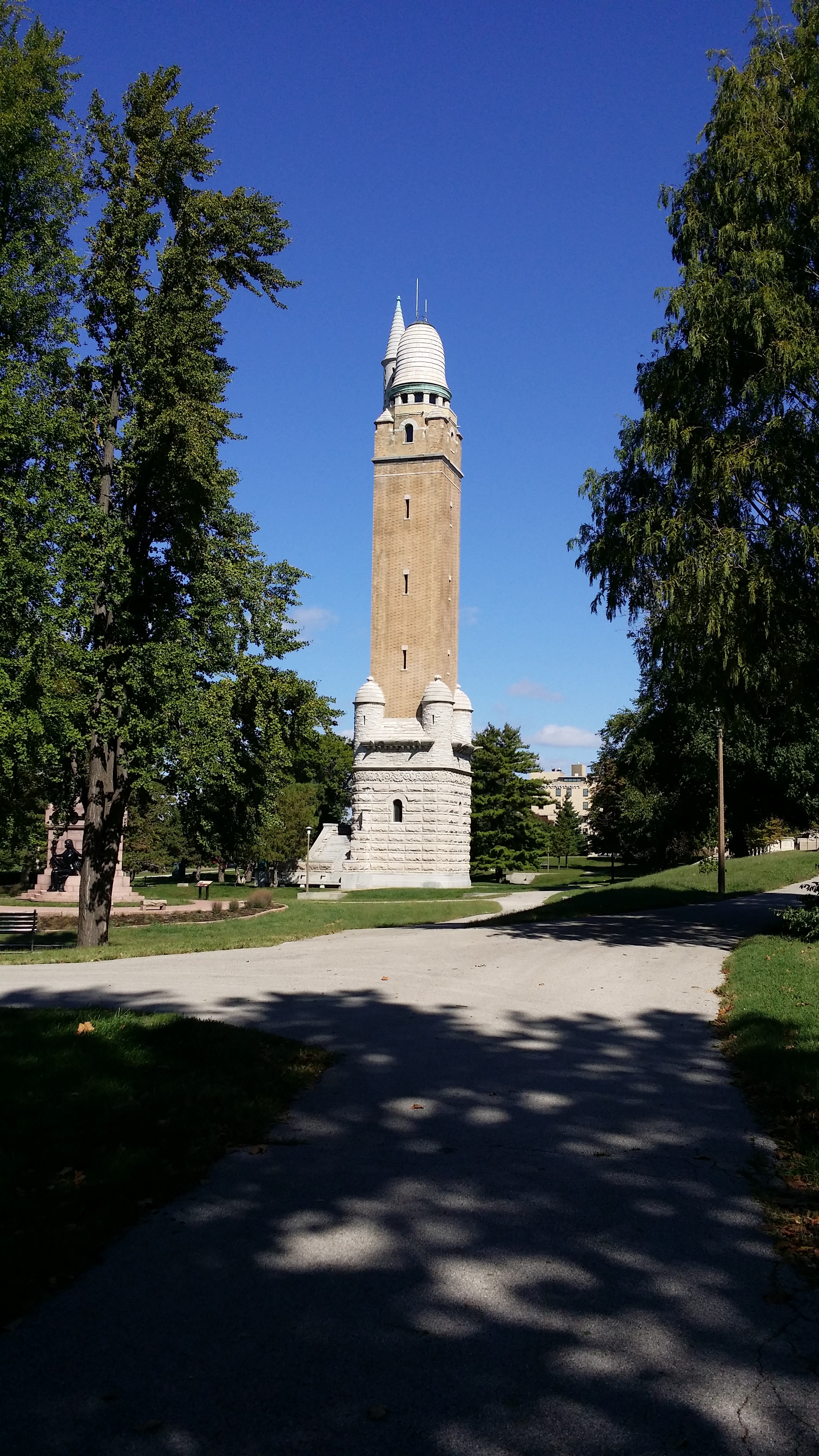
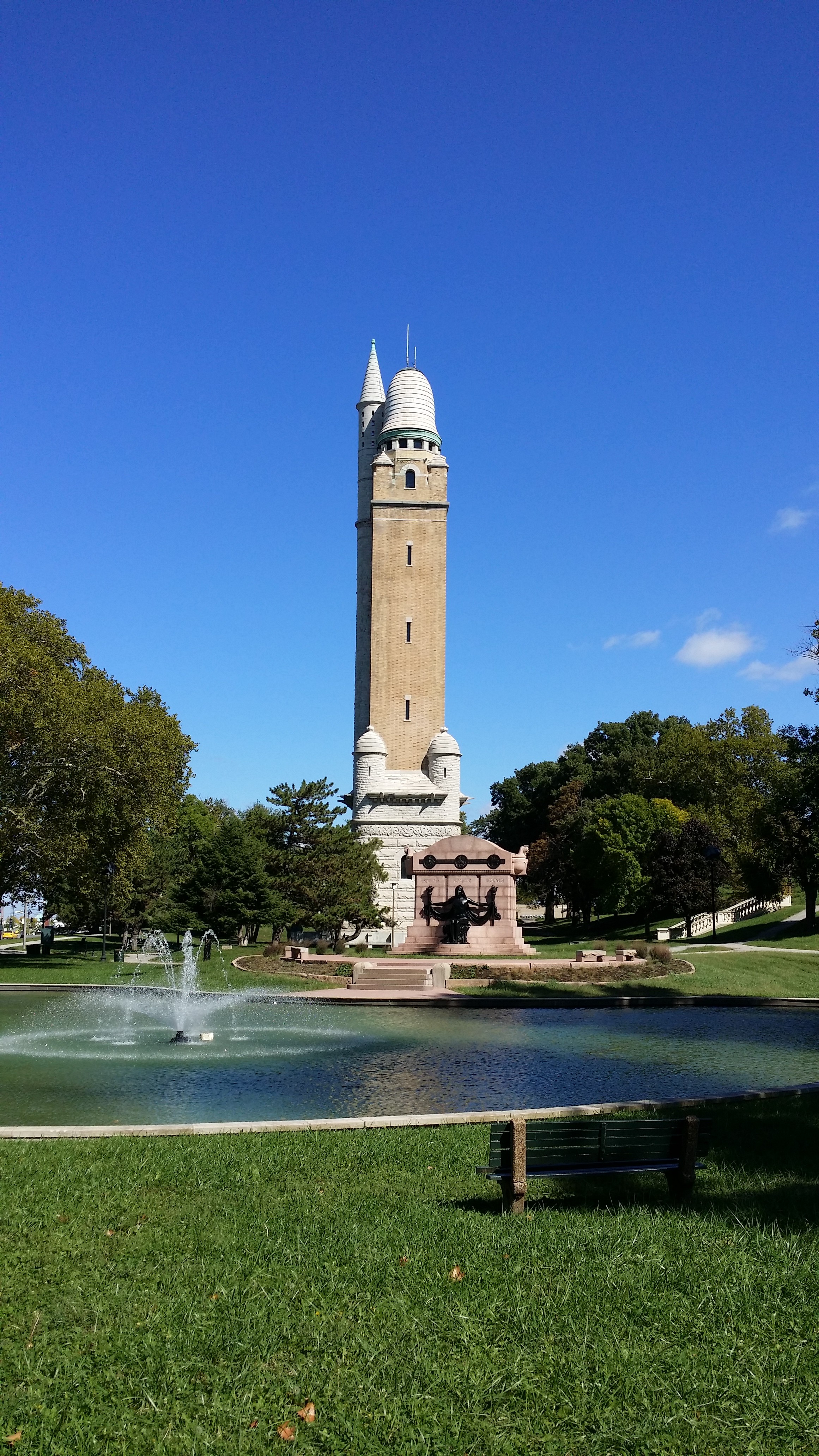
Compton Tower from the West

Compton Tower from the West

Compton Tower from the South

Compton Tower from the South

Compton Tower from the South

Compton Tower from the South

Naked Truth Statue

Naked Truth Statue

The inscription reads in part:  “As German-Americans and leaders of their compatriots in public life it ever was their lofty aim and steady purpose to prove true to the land of their adoption and to serve it faithfully and well.  Independent characters striving with ardent zeal for everything that is great and beautiful in life, they brought with them the precious treasures of Germania’s culture and placed them a blessing for all coming generations, in Columbia’s keeping…”

View from the top of the Reservoir

View from the top of the Reservoir

Mustache Fountain

Mustache Fountain

198 Stairs

198 Stairs

Looking up from the entrance to the Tower

Looking up from the entrance to the Tower

STL 250 Cake at the Water Tower

STL 250 Cake at the Water Tower

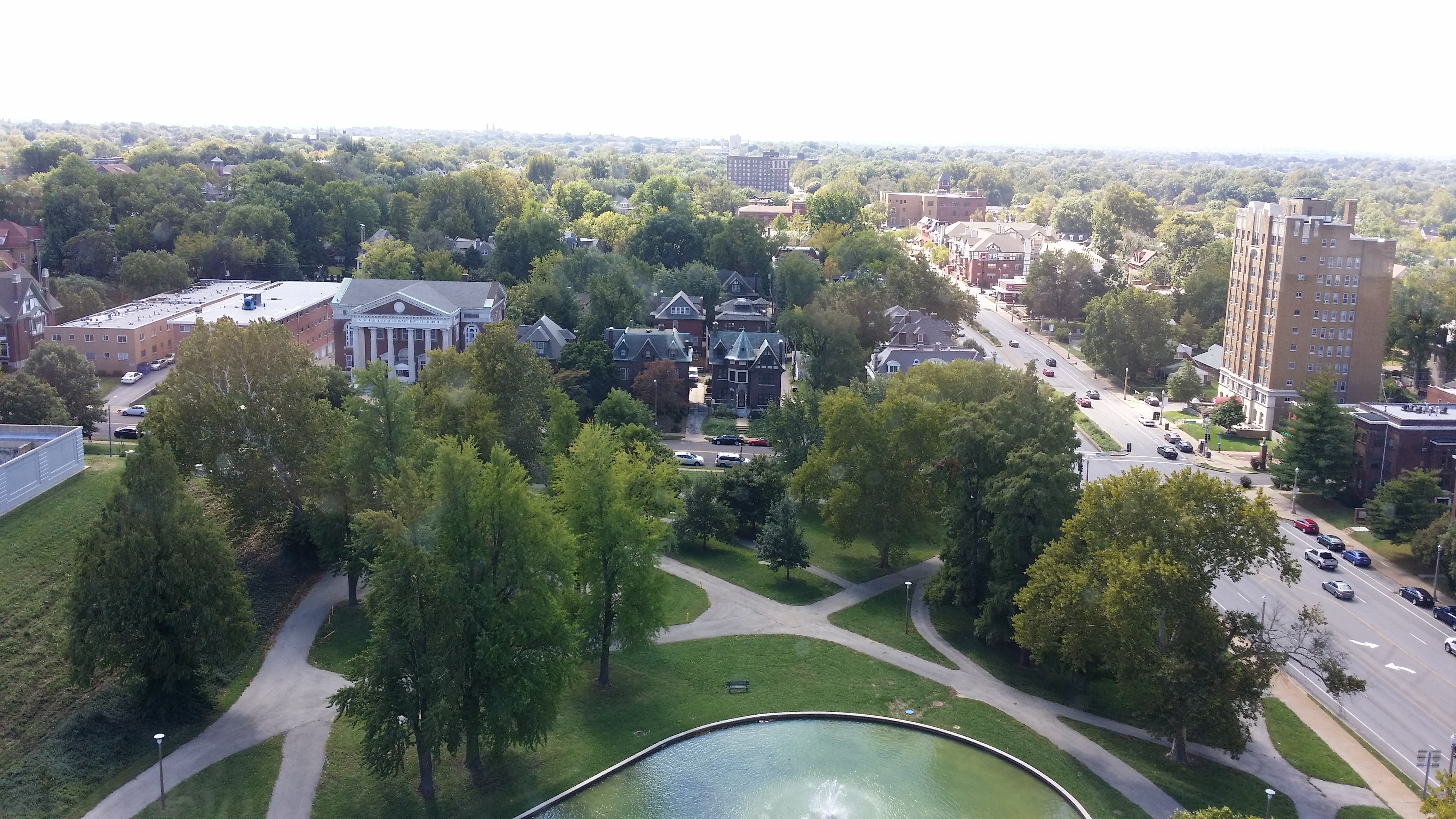
View of Downtown from the Top of the Tower, and the Reservoir Below

View of Downtown from the Top of the Tower, and the Reservoir Below

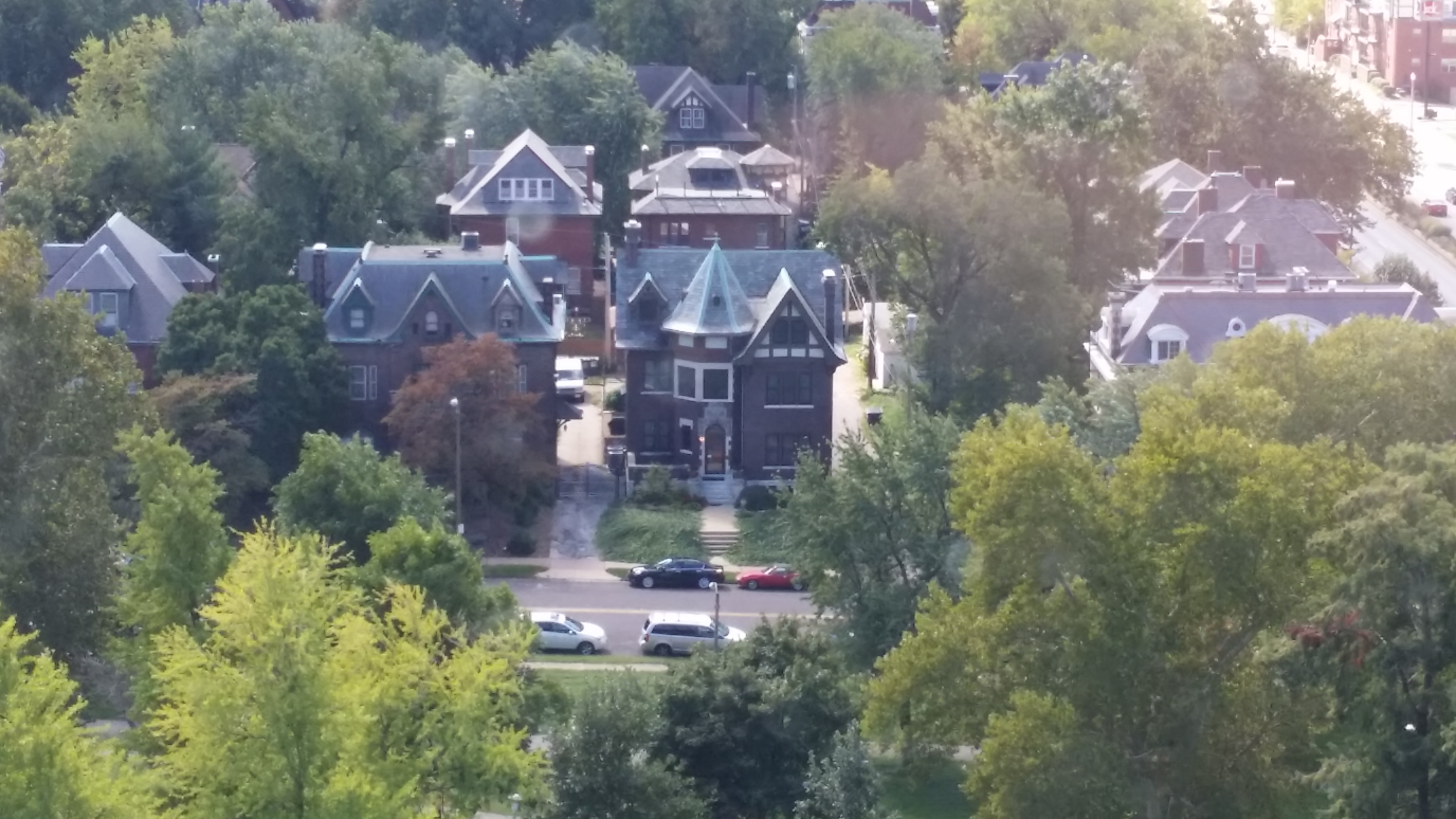
Compton Heights Neighborhood

Compton Heights Neighborhood

Compton Heights Neighborhood

Compton Heights Neighborhood

South St. Louis, Annheuser-Bush and Lemp Breweries visible

South St. Louis, Annheuser-Bush and Lemp Breweries visible

Cahokia Powerplant

Cahokia Powerplant

20141004_120930

Downtown Clayton in the Distance, looking West

Downtown Clayton in the Distance, looking West

20141004_121036

The Bissell and Grand Avenue Towers tiny blips in the distance, looking North

The Bissell and Grand Avenue Towers tiny blips in the distance, looking North

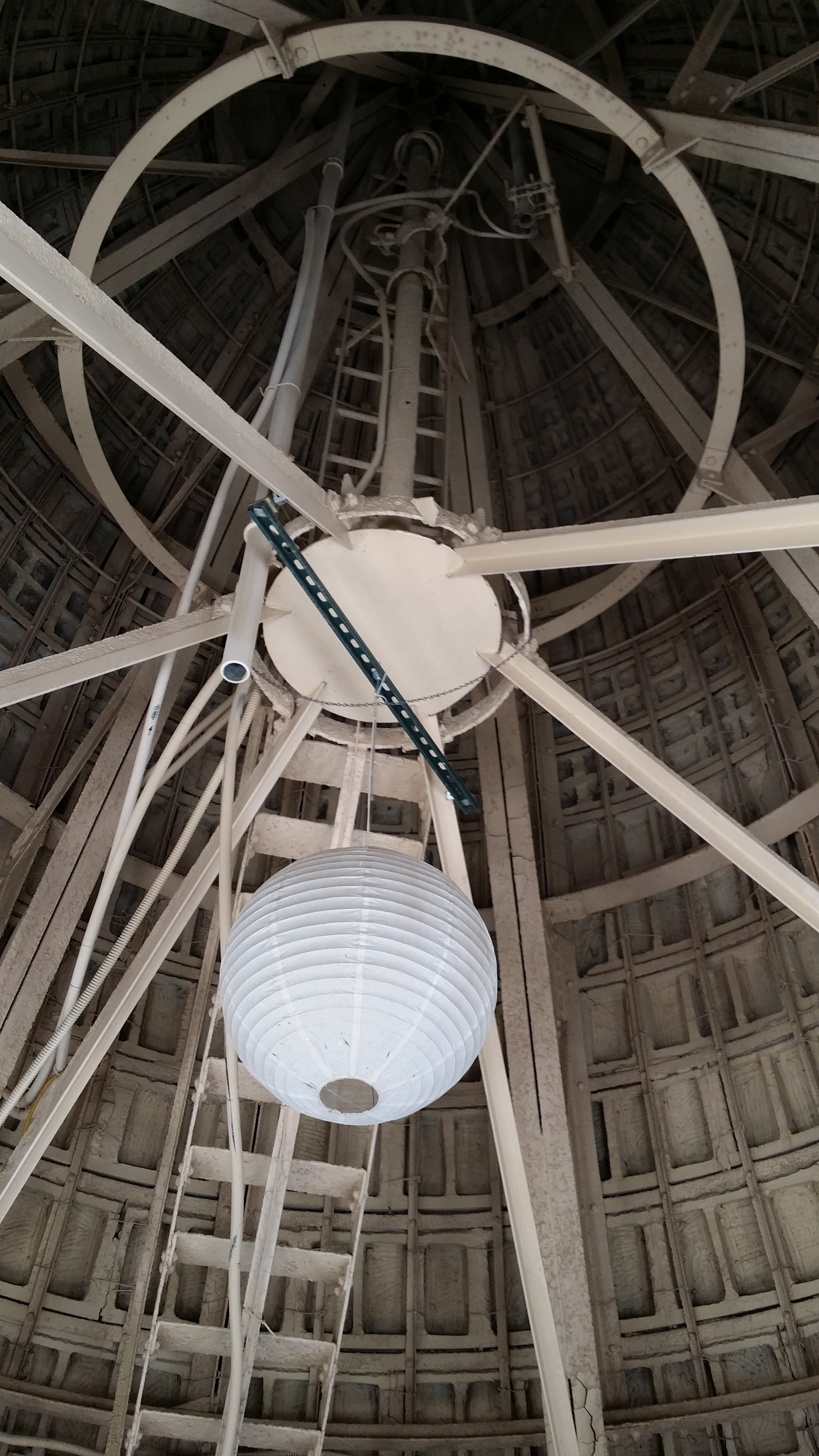
The Top of the Tower

The Top of the Tower

For more and better pictures of all three water towers, check out the Water Towers section of Built St. Louis.

Adventures in Linux – MacBook Pro

Several years ago I wrote a post called “Why I’m Buying a Mac.” I never ended up acting on that impulse, mainly because I was getting by just fine with my collection of aging Windows PCs on which I was dual booting with Linux, and mostly never even accessing Windows.

My wife had a Mid 2009 MacBook Pro that she had bought new many years ago. During her last semester of college, she frequently borrowed my Lenovo laptop to use MS Office 2013, which had programs she needed for both school and work that worked better for her purposes than Office for Mac 2008 was. I was glad to lend her the computer when she needed it since I could get by on my older computers for my needs during these short periods.

Eventually, her MacBook became essentially unusable. The 160 gb hard drive was full to the point only a couple hundred megabytes of space were unused and Google Chrome was unresponsive. Because of this, Shannon needed the Lenovo more and more to be able to get things done.

**Shannon (The Editor)’s Note: I did not like Window’s better than my MacBook! I worked as an admin and had to use windows so I got used to the Microsoft Office that windows supports. For those of you who don’t know, Microsoft Office SUCKS on Mac because the software is so out of date; it hasn’t been updated since 2011. I got spoiled on MS 2013/Office365

Hardware/Software Upgrade

We struck a deal, I’d trade her my Lenovo, probably the best computer I’d ever owned hardware wise, for the 5 year old (at the time) MacBook. In addition to the expansive 160 gb hard drive, the MacBook featured 2gb of RAM and a 2.26 ghz Intel Core 2 Duo processor. I went down to Microcenter in Overland Park and bought a 1tb hard drive, two 4 gb sticks of RAM and an external hard drive enclosure.

There are little pegs sticking out of the original MacBook hard drive I haven’t been able to remove, and I don’t know what to search for to find more to buy some, so the 1tb hard drive is just kind of sitting in the bay unsecured. Not ideal. I’ve still got to find a solution for this. I attached the old hard drive to external enclosure, but couldn’t actually enclose it because of the pegs that won’t come off. The computer was able to boot into recovery from the old hard drive now in the external enclosure, and using the tools within I was able to install OS X on the new hard drive.

It booted up, and I upgraded from OS X 10.9 to 10.10, which took a little way to download on the free version of Google Internet we employ. Great, so now I’ve got a clean MacBook Pro with a huge hard drive, what to do with it?

What to Do?

Well, triple booting with Linux and Windows was clearly the answer. I did a bit of research and installed rEFInd boot manager to make life with multiple OSes easier. Then I repartitioned the hard drive into three partitions of equal size. I could’ve probably just had one big logical partition to share among all 3 OS installations, but didn’t end up doing it that way.

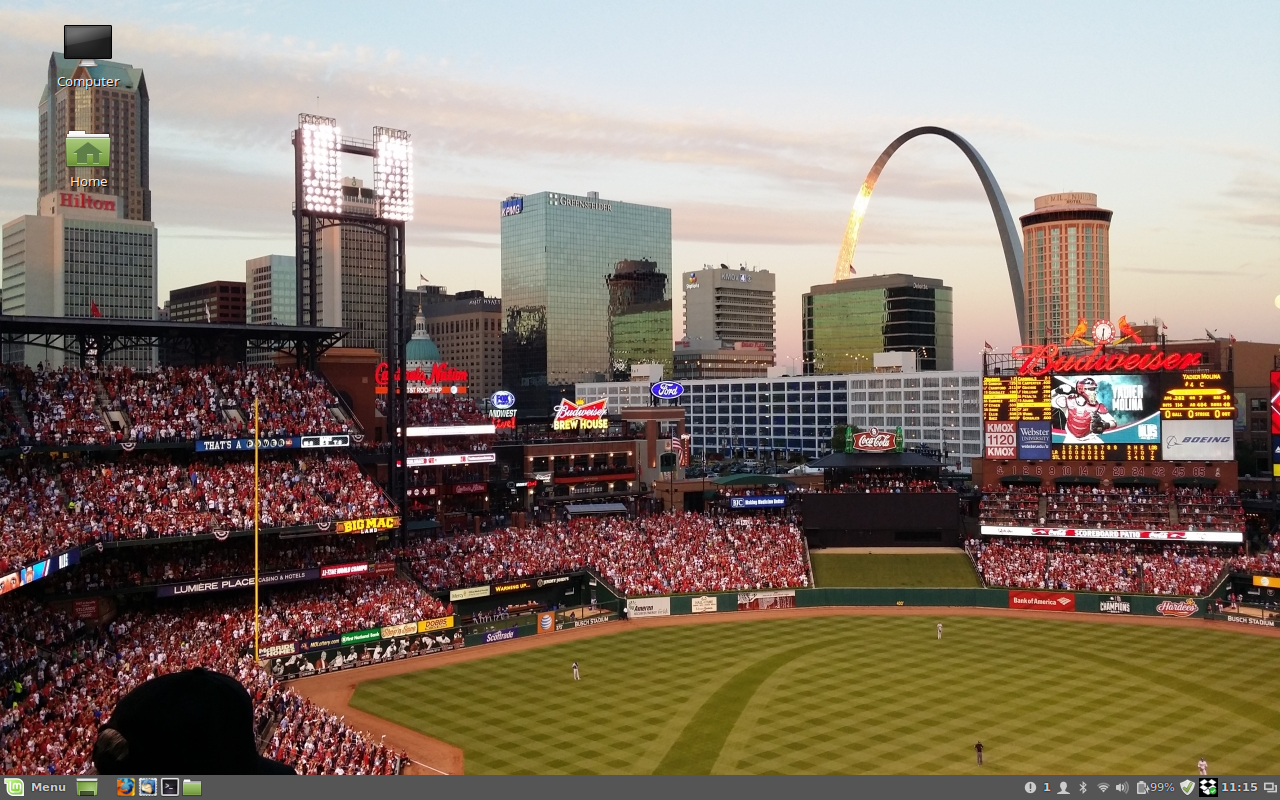
The next step was to install Linux. I wanted to use Fedora, which is my distro of choice for now. Unfortunately I couldn’t get the GNOME or Xfce version to boot on the MacBook at all. I tried Googling for a solution, but none presented itself. I’m sure there’s a way to make it work, but I didn’t find one or post on any forums or anything. I decided to see how Linux Mint would handle the MacBook, and it booted up and installed like a champ, even giving me a tool to install proprietary drivers for the wireless and graphics cards. I haven’t used Mint in a while because in my mind it’s too “easy” and I just really like Fedora, but I had used it quite extensively back in college. I ended up going with the default Mint 17.1 over LMDE since the Debian Edition didn’t include the tool to add the proprietary drivers. It was probably something I could’ve installed from the software manager, but I didn’t really look into it since Mint 17.1 will be supported until 2019. It’s pretty unlikely I’ll still be using this computer by 2019, and I’m sure I’ll do some distro hopping between now and then anyway, so the benefit of a rolling release like LMDE isn’t a huge loss for me in going with regular old Mint.

Linux Mint

Linux Mint

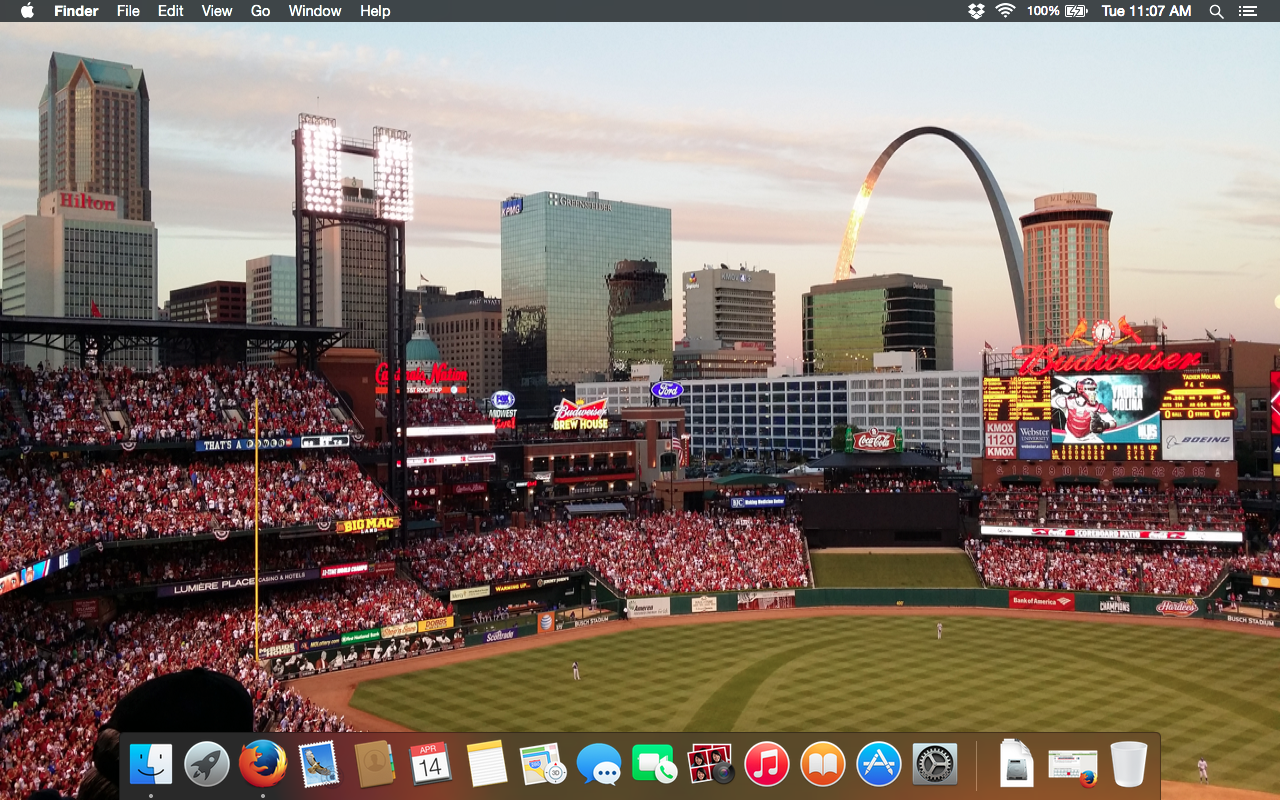
Mac OSX Screenshot

So far I’ve been too lazy to install Windows 7 on the third partition. I think I read somewhere that I’ll need a driver’s disk that would’ve come with the laptop when my wife originally bought it, so if I run across that, it should make things easier.

Impressions

If I had to describe my experience with the MacBook Pro so far, I’d say “meh.” The hardware is nice enough. Figuring out the key sequence to take a screenshot on the Mac took some Googling, as well as to set the same key sequence under Linux.

Ultimately OS choice is up to the individual user. I don’t find myself enjoying the Mac experience. The way programs stay running even if you close the window instead of that exiting the whole program is kind of weird. All over Apple’s website they talk about how OS X is the most advanced operating system in the world. Well, the interface is probably the most tired. Sure, in 10.10 everything went to “flat” icons rather than 3D, but the basic look of the whole OS has been about the same since 2001.

I also found that I have no interest in using all the default Mac software such as iTunes, iCalendar, and iWhatever else. I found myself installing the same software on OS X that I have come to use on Linux, and also on Windows when rarely I use Windows. If others want to close themselves up within Apple’s “walled garden” they’re free to do so, but it’s not for me. Maybe if I had an iPhone, an iPod, an iPad, and/or an Apple TV, or had stayed within the Apple universe I grew up in back in the 90s longer, I’d be more inclined to get back into it now.

Next Steps

The only thing I’ve noticed that doesn’t work on the MacBook under Linux Mint is the webcam. I’ve done research on how to get it working, but haven’t had any success. I would like to get Fedora to work on here because it’s really my preferred distro. At some point I also want to get Windows installed as well. Finally, the computer really needs a new battery as well. The old original battery lasts maybe an hour and a half.

**Shannon (The Editor)’s note: after conversing with Russell in regards to the webcam issue, it has became apparent that the webcam has been broke for a long time so the issue cannot be blamed solely on LM.

Thoughts?

Have you used Linux on a MacBook? Were you able to make triple booting work? Do you have any advice?

Own Your Name

This concept didn’t originate with me, and I can’t find the site(s) where I originally read about the importance of owning your own name online.  I’m not trying to take someone else’s idea here, just emphasize the truth behind the idea.  You need to own your own name online.

I realized a long time ago that you need to own your name in the form of a website.  I own basically every variation of russellhollander I can get my hands on, .net, .biz, .us, .org, .whatever.  I bought these domains so I don’t have anybody else out there operating under my name.  Not that anybody would do so maliciously, but if they are also named Russell Hollander.  Well, I was here first, and that’s going to be me.  You can find a different name to operate under online.  Someone else before me got rhollander and hollander, so I took russellhollander.

I hadn’t considered how this same logic applies to social media though.  Honestly I find social media kind of tiring.  I maintain a Facebook and a Twitter, but I don’t particularly care for them.  I keep FB going because I’ve got a ton of friends on there from college, and don’t have another way of being in touch with them.  I guess I could get their phones and email addresses, but it’s easier to just let FB handle all that for me.  I keep it pretty locked down though.  I kind of view Twitter as my public face on social media, but I barely send out any tweets.  I mostly use it to just keep track of news.  I guess I have a Google+ as well, don’t do anything with that.  Oh yeah, and Linked in.  Guess I should make better use out of these things.

But the Instagram Imposter episode has taught me that you need to own your name on social media too, even when it is annoying.  I don’t know anything about Instagram other than Facebook owns it.  Yet some miscreant got on there, set up an account with basically my name, stole my photo from Twitter, and at least had the decency to also post this web address.  I can’t really see that the person did anything with the account.  No activity.  I would’ve never even known about it unless a couple friends of mine told me they were following me on there.  Well, you can’t follow me on Instagram as of this writing, because I don’t use an Instagram.  But maybe I should.  Someone else is out there pretending to be me.  I can’t have that.

In the end, Instagram removed that account, so for now the issue is resolved.  I’d still like to know if it was a person creating that, or if Instagram somehow scrubbed publicly available data and made that account to inflate their numbers, as was suggested by a friend of mine in the web design, SEO, and marketing business.

The whole point I’m rambling towards is that you probably should have an account for yourself with these services, if nothing else so your presence on the web is actually coming from you.  Most of us are insignificant enough no one would bother to take our names or try to pretend to be us, but I don’t know why you’d even give out the opportunity.  Maybe that’s a paranoid way of looking at things, but I’d look at is as proactive.

Someone Is Impersonating Me on Instagram

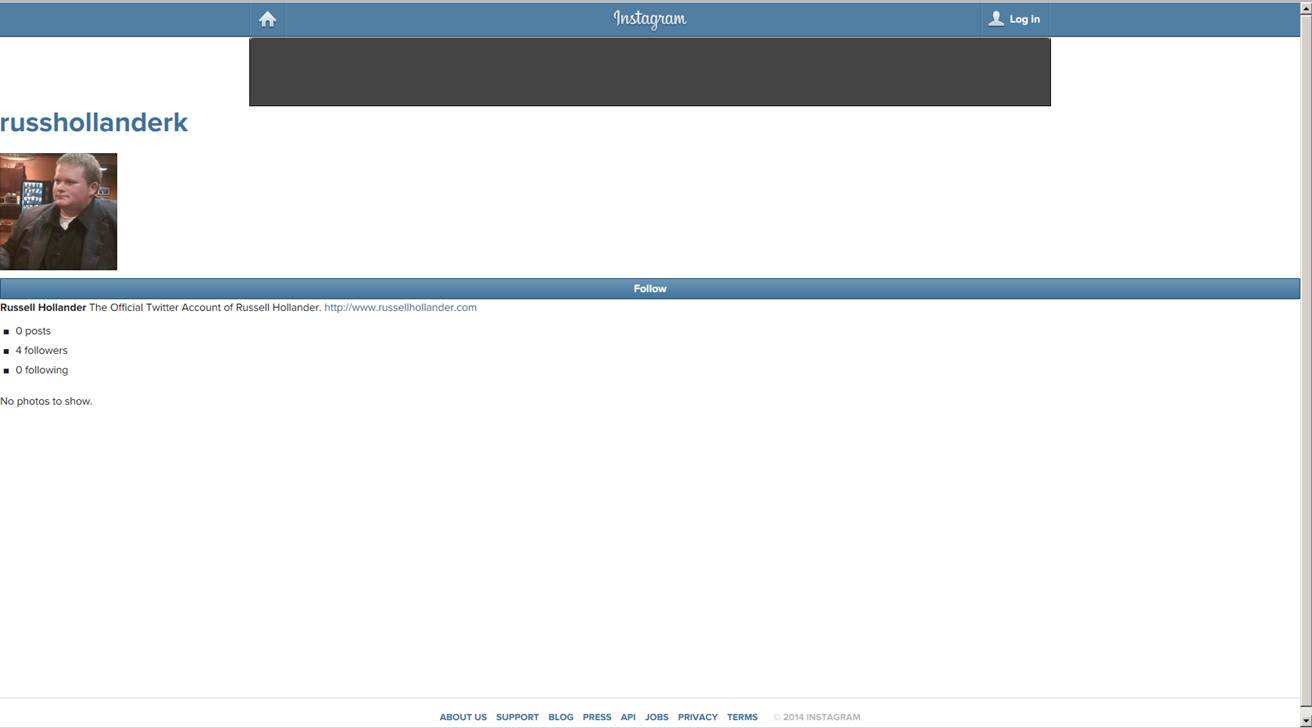
I don’t have an instagram account.  If you go to www.instagram.com/russhollanderk you will see an account using my image and listing my website address.  I did not set this account up, and this is not me.  I am not this person.  I found out about it when friends of mine in the real world told me they were following me on instagram.

Instagram’s “help center” or whatever is being anything but helpful.  In addition to having no phone number or email address or whatever, their annoying form to dispute this account isn’t working.  And they’re demanding that I send them color photos of government issued IDs.  Well, I don’t like that, but I’m trying to do it.  And they won’t let me.

The impersonator doesn’t appear to really be doing anything.  I’m wondering if Facebook just decided to create this account for me.  If that’s the case, they need to let people know they’re doing that.  Instagram needs to make their support and help pages actually useful.

I’ll post another update whenever this situation resolves itself, if ever.


Update 10:42

I think I finally got the form to submit on the official instagram help page, so hopefully the ball is rolling.  I also tweeted @Instagram and @Instagram help to try to move things along.  I have a feeling I’ll get faster action that way hopefully.  I’m sure the Instagram app and website are dandy, but I don’t use that service, and don’t want anyone using my image, likeness, and name out there.  People that do use Instagram love it, and I’m sure their support is good, and the problem I was having submitting the dispute form was on my end.  Further updates to come.


Update 10:51

Got an email from the Instagram support after submitting the form finally worked.  I emailed them back with the exact same info I had submitted, just to be sure.  I’m sure they’ve got the ball rolling now.  Hopefully this will be done quickly.  Below is a screenshot of the imposter account, just for fun.

Imposter


Update 10:57

Just an observation, not really a development.  The Instagram dispute form wanted color copies of a government issued ID where they can clearly see my name and so forth.  Well, in addition to my driver’s license, I keep my passport in my work bag.  My girlfriend thought it was weird to have that on me.  Maybe that isn’t smart, but I always know where it is.  And it came in handy today.  I know I’m me, and I have two forms of gubmint ID to prove it, basically at all times.  I’ve got my social security card on me too, come to think of it.  Right behind my fishing license in my wallet.

Update 4:30 on 4/19
Overnight I got an email from Instagram saying the fallacious account was deleted. They didn’t elaborate on whether an individual was responsible, or if it was something created automatically, which is a theory that seems more and more likely. Also, I’m making this update from my phone. This is my first time using WordPress as an app on my phone. Seems pretty good so far.

2011 Review

2011 was my first full year of post-college “real life.” In many ways this was a year of beginnings, and for me it was a very good year. I thought I would do a little summary write-up of some of the significant events in my life during 2011. Later I will do a post on some of my plans for 2012.


I began 2011 with a trip to the Consumer Electronics Show in Las Vegas in early January. I had never been to Las Vegas before, so that was quite an experience in itself. I stopped by the Gold and Silver Pawn Shop of Pawn Stars fame, drove out to the Grand Canyon, and saw many fascinating cutting edge technical gadgets. The weather was beautiful in Nevada, and I was not excited to return to 8 inches of snow covering my car at the Kansas City airport.


The defining element of 2011 for me was starting my first full-time job at Cerner Corporation in Kansas City. I was hired at the end of 2010, and started work in late January of 2011. After a period of training, I joined my AMS team in early April, where I have been working ever since. My team, organization, and the entire company have been growing rapidly this entire year. I’ve made many new friends and gained lots of valuable experience, and I’m looking forward to continuing my career in 2012.


Later in the year, I had an opportunity to get more involved with my church by helping facilitate a Financial Peace University course. Most of the concepts were not new to me thanks to my finance educational background, but Dave Ramsey’s course material is very well organized and simple to understand. After going through the course, I’ve made some important changes in my own saving, spending, and investing habits.


So, those were some of the more important things that happened to me in 2011. Keep your eyes peeled for my next post, which will detail some of my plans for 2012.

Flashdrive Linux Saves the Day

As I have mentioned previously on this blog, I never go anywhere without a bootable Linux flashdrive. The fact that Linux is so portable is one of my favorite things about it. I have at various times kept Fedora, Linux Mint, and Puppy on my flashdrive, but for the last couple months, my mobile distro of choice has been Knoppix.


Before I switched to Knoppix, I had been using Puppy. I liked it, but I wanted to try something different. I started doing a little research, and decided to try either Puredyne or Knoppix. Puredyne has a focus on creative media, and looks very interesting, but I ultimately decided to go with Knoppix. Knoppix, like Puppy, Fedora, and some other distros, has encryption as part of the setup process, which is a big plus for a computer I’m carrying around in my pocket in case I lose it. It is also Debian-based, so it benefits from Debian’s vast software library and stability. I downloaded the ISO, and wrote it to my 8 gig flashdrive.


I’m not going to go into great details about how to set up and use Knoppix. I found it to be pretty intuitive, and I’m not a super-guru or anything. I just want to talk about some of the things I’ve done with it. These same things could be accomplished with other Linux distros, too.


One of my co-workers was having a virus problem on his personal laptop, so I booted his computer from my Knoppix flashdrive, ran a Clam antivirus scan, removed 3 viruses and he was then able to load and use Windows as normal. I’ve since used Clam on Knoppix to remove viruses from several other computers with the same level of success. Clam is available on many distros, so if you’re looking for a Linux antivirus that you can also use to rescue other systems, Clam is worth checking out.


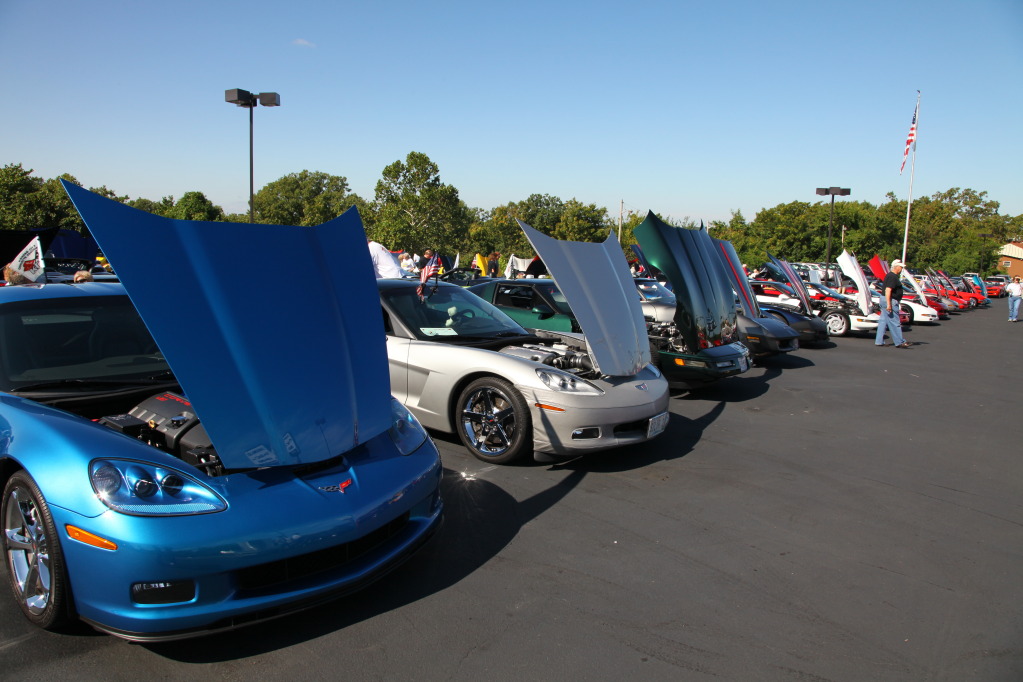
The most recent example I have had of Linux on a flashdrive completely saving the day happened last weekend. My family are corvette enthusiasts, and every year they host the 4th Annual Corvette Meet and Greet at Ron Hulett Chevrolet at Lake of the Ozarks (Click here for pictures). I went down to my parents house that weekend to help out with the show and run the sound. We were expecting 90 cars to participate in the show, but over 100 ultimately showed up.


4th Annual Corvette Meet and Greet

My dad had a spreadsheets set up for participant registration and vote tabulation. My parents’ plan was to run the sound, registration, and voting off of their 4-5 year old Dell laptop running Windows XP, as they had done for the previous three years.


A couple hours into the show, the computer blue-screened and we couldn’t get Windows to boot. I wish I had taken time to pay attention to the blue screen messages, but time was of the essence, so I’m not sure exactly what went wrong. I booted the laptop off of my Knoppix drive, connected to the dealership’s wireless network, got a music playlist going on Grooveshark, and mounted the hard drive to get a copy of the registration and vote tabulation spreadsheets. Fortunately the drive mounted and I was able to save a copy of each to the flash drive and continue inputting data with LibreOffice Calc.


If I had not been carrying Linux on a flash drive, the corvette show would have been much more difficult to complete successfully. We would have had no music, and vote tabulation would have been a nightmare, with over 90 ballots, each with 16 classes to vote on. After the show was over, I ran a Clam scan and removed several viruses from the XP hard drive, and it was able to boot as normal after that, though I’m not sure if the viruses were the problem (though they couldn’t have been helping anything).


Next year, we’re running everything off of one of my Linux laptops. I think I’m going to make a database for registration and vote tabulation too, because I think it will be a better way to keep everything organized, even though the spreadsheet got the job done.


Do you carry around a Linux flashdrive everywhere you go? What distro do you use? Have you been able to save the day with Linux? Any cool stories? Share your story in the comments.


Update:  Thanks, LXer.com, TuxMachines.org, LinuxHomePage.com, and News.Ycombinator.com for linking to my blog post, I really appreciate it!

Upcoming Projects

I’m Back

Hello friends. It’s been quite a long time since my last post. I’ve had a lot going on with my new job and moving to a new apartment, but I’m going to be getting back into regular posting. I wanted to write about my short- and long-term upcoming projects, just to give a preview of things to come.


Upcoming Projects

  • Short Term: Within the span of a week I will be running Slackware on my original laptop, which I brought back to KC from my parents house over Easter Weekend. This is part of an ongoing effort I am launching to free myself of the shackles of the graphical user interface.
  • Medium Term: Within a month, I will have an iPod running with Rockbox in place of the normal iPod firmware.
  • Medium Term: Between one and three months from now, I will build a home theatre PC. Does anybody have a suggestion for what Linux distro to run on it? I’m looking into XBMC, but I’m open to alternatives.
  • Long Term: Between six months and a year from now, I will build a new desktop PC. My current desktop was pretty close to top of the line 3 years ago. Now it’s just average. I don’t really need to build a new top of the line PC, but I do want to put something newer and better together. I want to run a quad core processor, 8 gigs of RAM, and a 64-big OS, despite the fact that I have no real need for that sort of power. Maybe over the next year I’ll come up with some excuse to use that sort of horsepower.
  • Other: at some point I’d like to build my own radio. I don’t really have any other details on this project idea right now, but it’s something I’ve been thinking about for a while.
  • Other: at some point I’d like to build a wort chiller.


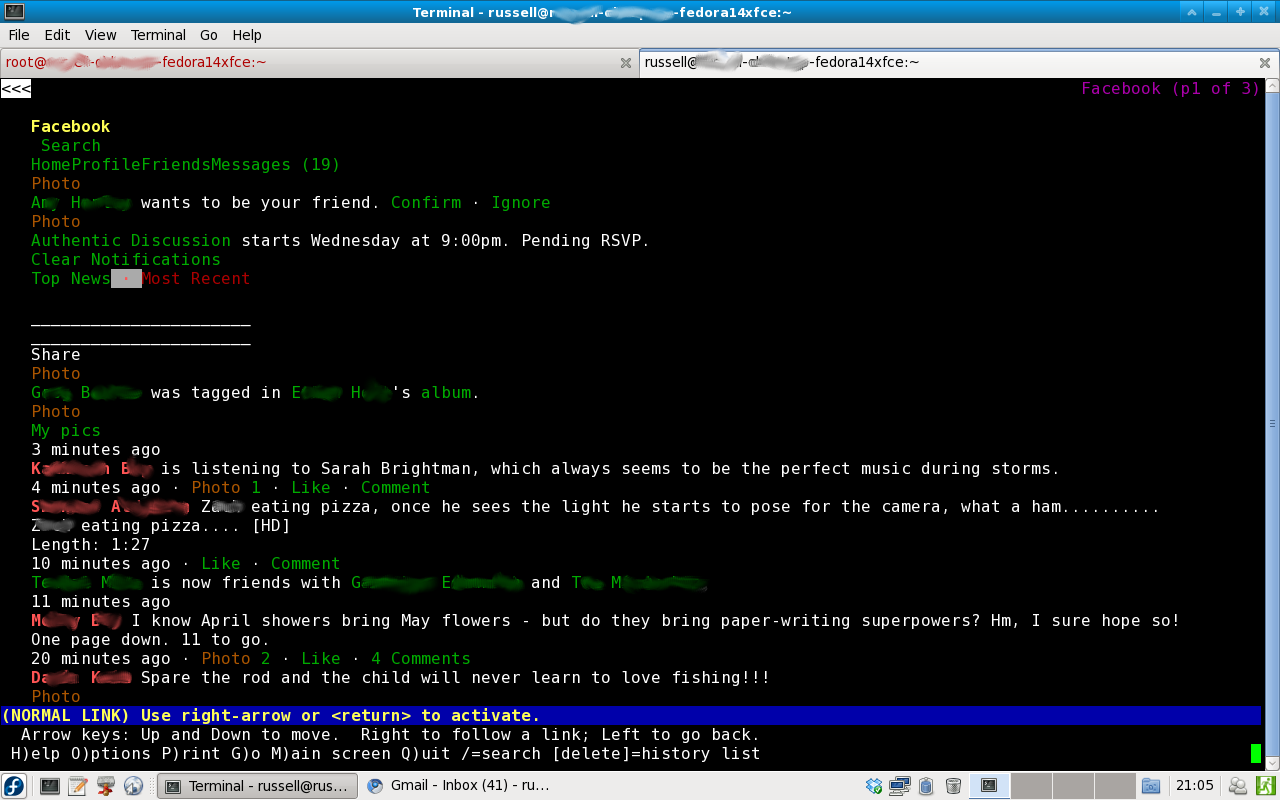
I mentioned above that I want to learn Slackware. It’s the oldest Linux distribution out there.  I want to learn Slackware because it’s going to present challenges and opportunities for growth.  My plan is to run Slackware without a GUI, and still be able to do most (if not all) of the things I do now on a computer.  One important part of that GUI-free adventure is going to be browsing the internet.  I’ve already experimented with this on a limited basis using Lynx browser, which is 100% text-based.


Viewing Facebook Using Lynx Browser

So there you go.  These are a couple of the things I’m going to be working on over the next year.  If anybody has any suggestions for any other cool projects, let me know.  I’ll keep you all up to date on the progress.  Got any advice on how I should take on any of these projects?  Particularly Slackware?  I’ve been reading the Slackbook.  Have a good one.

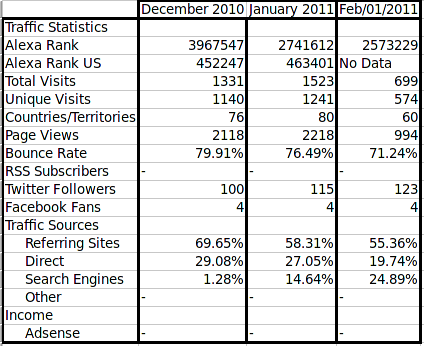
February Site Statistics

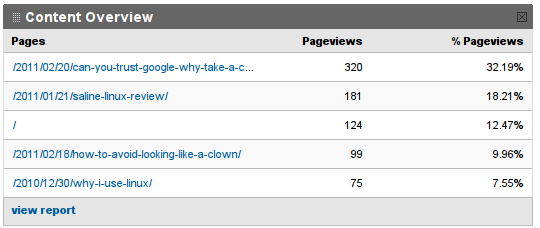
I had two posts this month: How to Avoid Looking Like a Clown and Can You Trust Google? Why Take a Chance?. The Google post was more popular, with 320 page views, but the Clown post generated more discussion. I was pretty busy in February starting my new job, so I didn’t post as much, and this resulted in a drop in traffic. Now that I’m pretty well settled in, I’m going to do better in March. What was exciting for me was the fact that I only promoted either of these pieces through my Twitter, Facebook, and LinkedIn accounts. Previously the only way I got any views was by submitting my work to Lxer, and then others posting it sites like Tux Machines. I’m very grateful for those traffic sources, but I’m glad that people are coming back to my new stuff even if I only promote it half-heartedly. Get excited, because I’ve got some good posts brewing for this month.


Have a good one.

Can You Trust Google? Why Take a Chance?

Google is the dominant search engine in the world right now, as everyone on the Internet surely knows. Their offerings go well beyond search engines though. You could live your entire digital life using only google products, and basically suffer no loss of productivity. They have Gmail, Google Docs, Google Reader, Google Goggles on Android (great app), and many more wonderful services/applications that I love to use. And their search engine results are typically very good. So good in fact that Bing copies Google’s search results.

I was not an early adopter of Google. In my early Internet days, I used Infoseek, because that’s the only search engine I was aware of, thanks to my dad telling me about it. Then during middle school I became aware of Yahoo, which most of my friends were using. I liked it, and stuck with Yahoo through my first year in college, even to the point of getting a Yahoo email address. I heard of Google in high school, but I didn’t start using it until later because if it ain’t broke, you don’t have to go fix it.

But Yahoo was sort of bloated. I liked Google’s clean interface. You go to Google.com, and you get an all-business search engine. Gradually over the years I’ve become Google-dependent. I used Gmail for all of my email correspondence until very recently. I’ve used Google Docs at school to work collaboratively with others. I use an Android phone, the great HTC Evo 4G. I love a lot of what Google does.

However, there are things I don’t love about Google. They’re very good at profiling you and targeting ads to you. Based on the contents of your Google searches and the contents of your emails, you receive targeted advertisements. I don’t like anyone knowing my habits and interests that well. I’m not saying someone is sitting around at Google reading through my Gmail, but it is obvious that they are matching key words or something.

Another thing to be aware of about Google: They have political opinions and objectives. This isn’t wrong, almost all corporations are influenced by or are influencers of government policies. I’m not going to get into what Google is all about politically, but they do have positions and take actions based on those positions.

Do you want a better, more secure, more private search engine? Give Duckduckgo a try. I’ve been using it almost exclusively for several months now. It’s great.  Also, their !Bang feature is awesome and extremely useful.

Click this link for a detailed explanation of why Duckduckgo is more private than Google.

Duckduckgo also has an official iPhone and iPad application and an official Android app is in the works. Until the official Android application arrives, there is an unofficial one that is pretty good.

I don’t think Google is evil or conspiratorial. I just don’t feel like being tracked that closely. I’m moving away from Gmail, and I use the superior (for my needs) Duckduckgo for my search engine. You should too.

Are you concerned about what Google knows about you? Well, they only know the information you give them. Thoughts? Questions? Comments? Let me know below.